
Your phone only charges when the cable sits at a certain angle. Your laptop connects to power, then drops out. Your Nintendo Switch shows no charging symbol at all. If you searched réparer port USB-C, start here: a USB-C charging problem is not always a broken port, and forcing a cable into one can turn a small fix into a board-level repair.
USB-C ports are compact, but they do a lot of work. The same opening may handle charging, fast charging, data transfer, video output, headphones, or accessories. Before anyone replaces a part, the real question is simple: is the problem the cable, debris in the port, the port itself, the battery, or the charging circuit on the board?
Start with the easy checks before you repair a USB-C port
A damaged cable is more common than people think. Try a known-good USB-C cable and power adapter that work with another device. If you are charging a laptop, tablet, or gaming console, make sure the replacement charger supplies enough wattage. A low-power phone charger may show a charging icon on a laptop without actually keeping up with power demand.
Next, turn the device off and inspect the port under a bright light. Pocket lint gets compressed into the bottom of USB-C ports, especially on phones carried in jeans or jackets. The cable may look connected while its plug is sitting on packed debris instead of reaching the internal contacts.
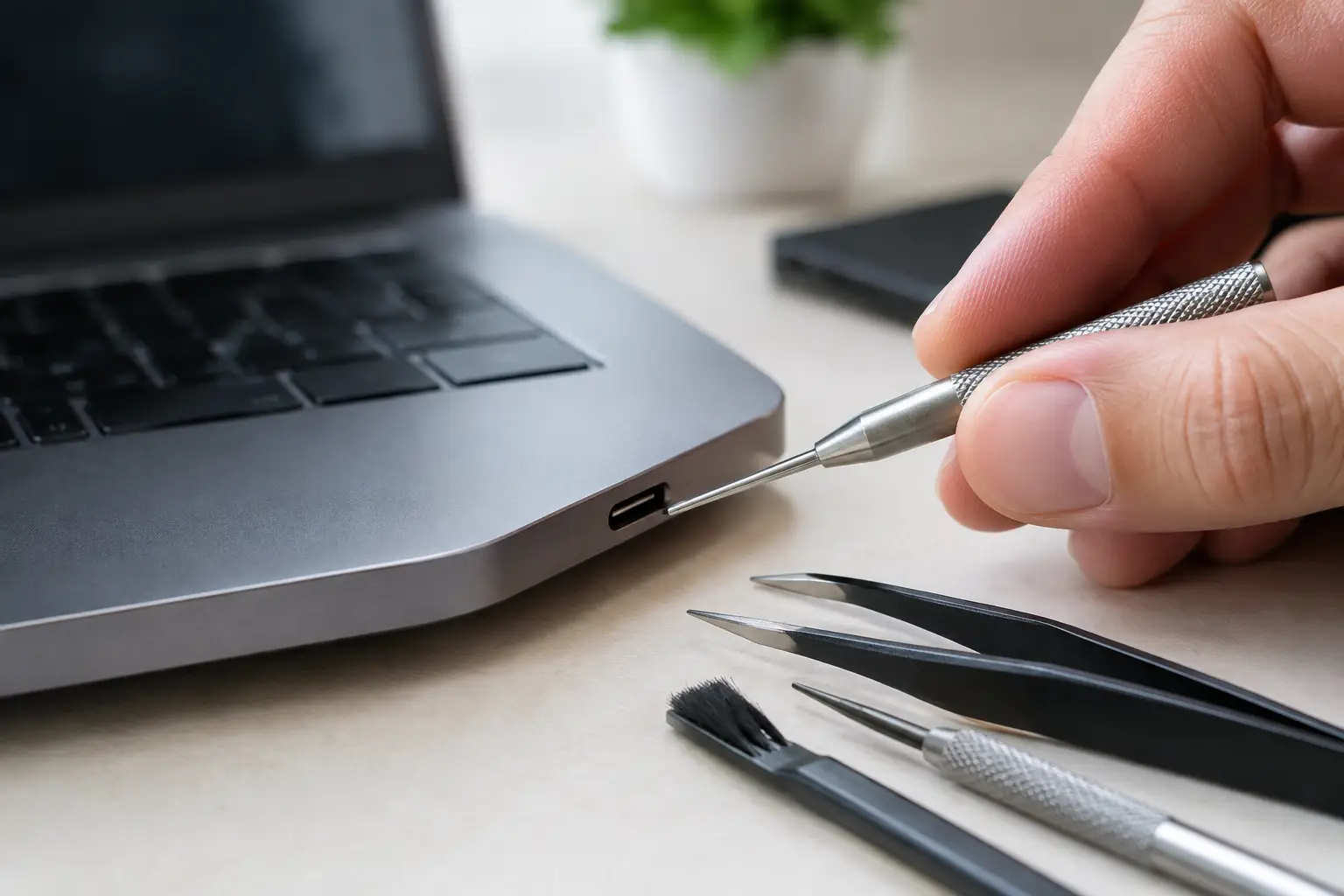
If you can clearly see loose lint, use a dry, non-metal tool with a light touch. A wooden toothpick or plastic pick is safer than a pin, paper clip, knife, or SIM tool. Work around the edges and pull material out gradually. Do not scrape the center tongue inside the port. That thin piece holds tiny contact pins, and bending them can cause charging, data, or accessory failures.
Never pour liquid, rubbing alcohol, or compressed air into a port as a first move. Liquid can travel farther than expected, while compressed air can push debris deeper or leave moisture behind. If the device was exposed to water, stop charging it and get it inspected. Charging a wet USB-C port can cause corrosion or a short.
Signs the USB-C port is actually damaged
A clean port and tested charger rule out the simple stuff. From there, the way the device behaves gives useful clues.
If the cable feels loose, falls out easily, or only works when held in one position, the port may have worn retaining tabs, bent pins, or cracked solder joints. This is common on phones that are used while charging, handheld consoles that get bumped on a cable, and laptops with heavy chargers pulling downward on the port.
If charging starts and stops with several tested cables, the issue may be physical damage inside the port. If the cable fits firmly but the device does not charge at all, the failure could be a charging chip, battery issue, fuse, power-management circuit, or corrosion on the motherboard. Replacing the visible port without testing those parts can waste money and leave you with the same problem.
Other signs of a deeper fault include a burning smell, unusual heat around the connector, an intermittent charging symbol, a “moisture detected” warning that will not clear, or a device that charges but cannot transfer data. Disconnect power immediately if the port or cable gets hot. Do not keep trying different chargers until something works.
Why a USB-C port repair is not always a simple swap
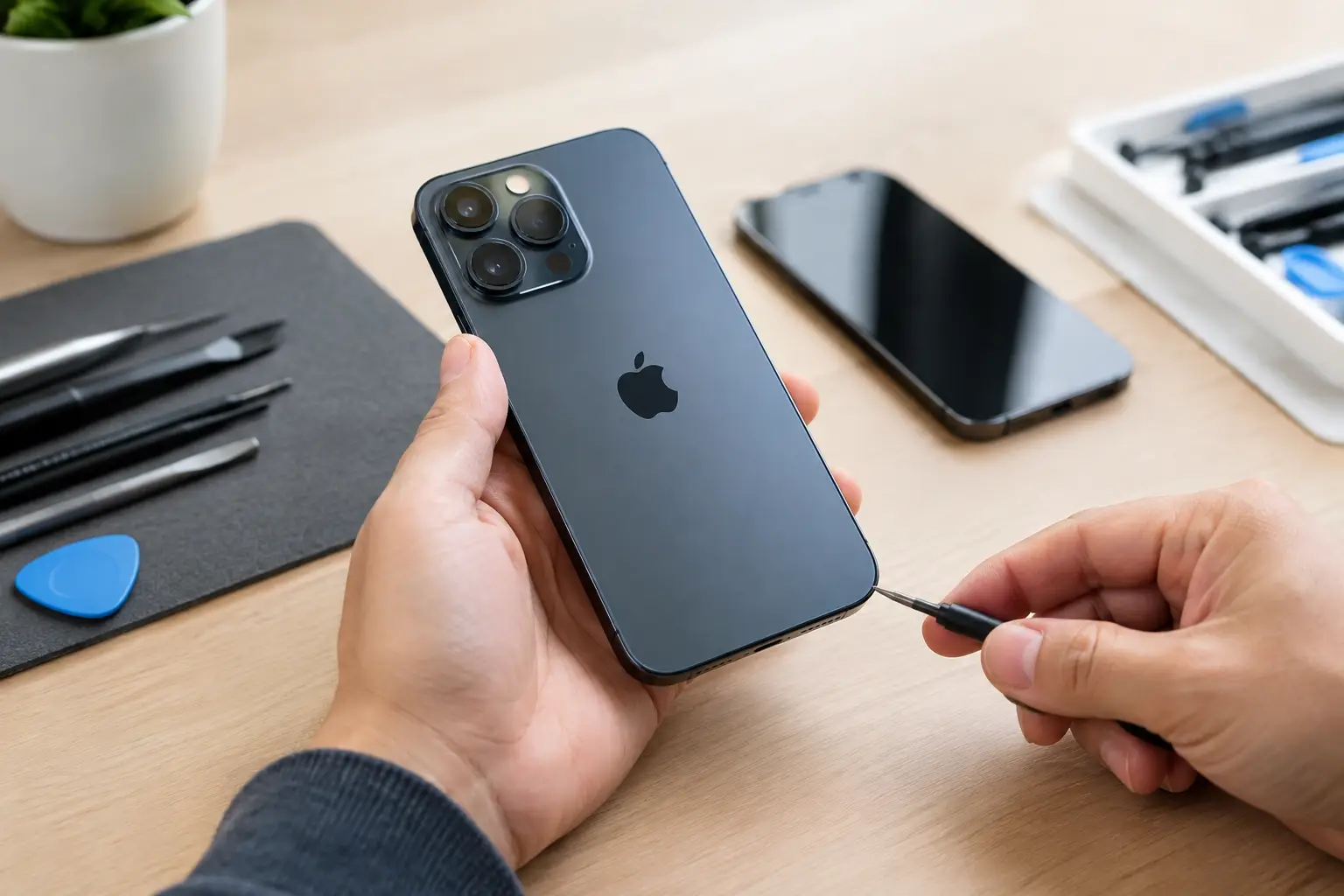
On some devices, the USB-C connector is attached to a separate charging board or flex cable. Replacing that assembly can be straightforward once a technician confirms the diagnosis. Many phones, tablets, and game consoles use this design.
On others, the USB-C port is soldered directly to the motherboard. That includes many laptops, tablets, phones, and consoles. Repairing it requires controlled heat, proper shielding, microscope work, and experience with microscopic pads beneath the connector. One lifted pad can mean the port still needs a board-level trace repair after the new part is installed.
That is why price quotes for a USB-C repair can vary widely between models. The part itself may be inexpensive, but the labor and risk are different when the connector is integrated into a logic board. A good shop should tell you whether it is replacing a charging board, replacing a soldered port, or diagnosing a fault farther down the power line.
Do not make the damage worse
When a USB-C port acts up, most accidental damage happens during repeated troubleshooting. Avoid bending the cable upward to “find the sweet spot.” Avoid magnetic tips that can trap metal debris. Do not use a loose or frayed cable, even if it temporarily charges the device.
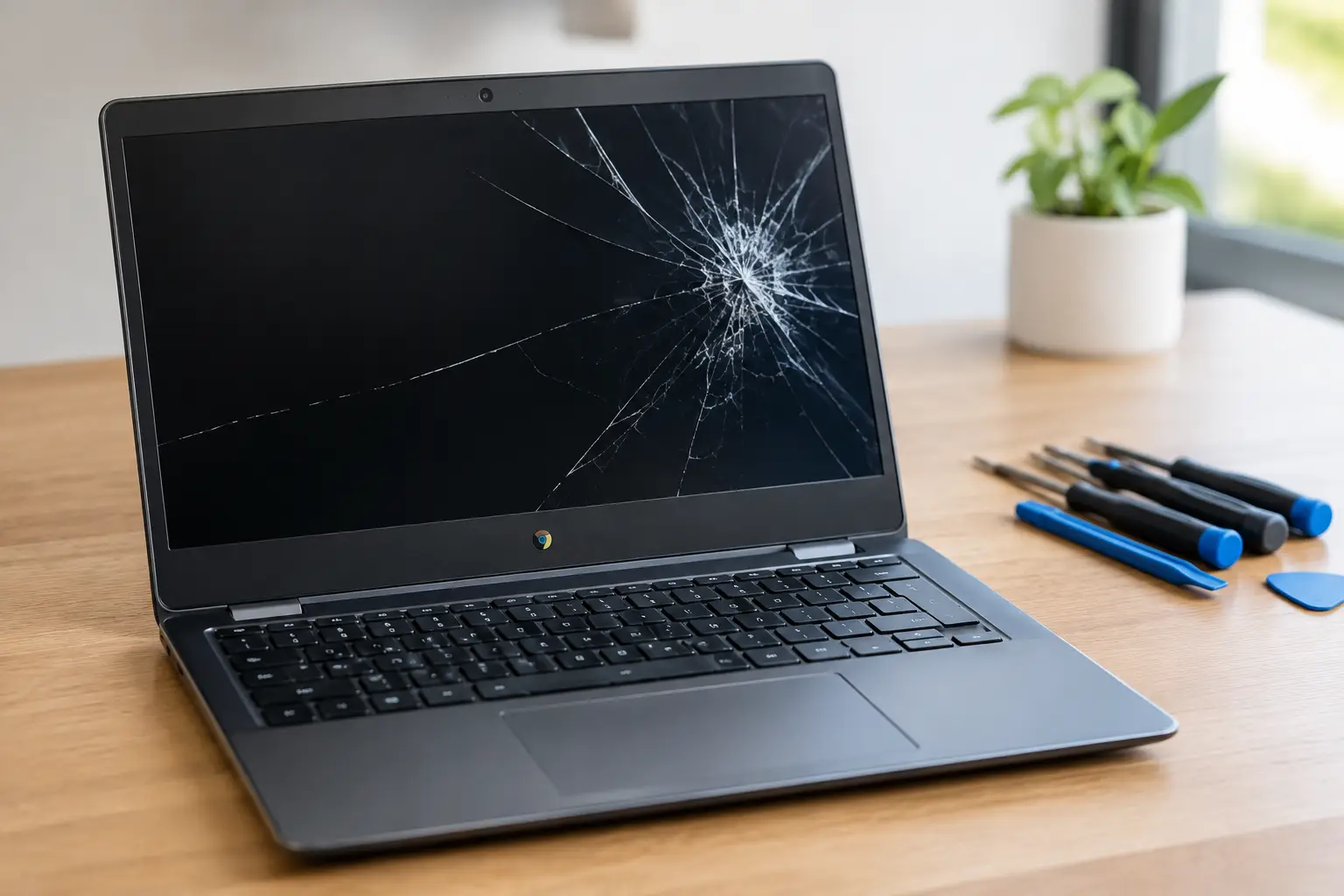
Be especially careful with laptops and gaming consoles. Their larger charging cables put more leverage on the port, and a failed port can sometimes affect nearby power components. If a console has no power after a surge, drop, or liquid exposure, a port replacement may not be the complete answer.
Back up your data as soon as the device powers on reliably. A charging issue can become a no-power issue without much warning. Cloud backup is useful, but confirm that recent photos, messages, work files, and authenticator information are actually syncing. If your device cannot stay powered on, a repair shop may be able to stabilize the issue long enough to help protect your data, depending on the fault.
What a proper USB-C charging diagnosis should include
A real diagnosis goes beyond plugging in a cable and declaring the port bad. The technician should inspect the connector under magnification, test known-good cables and charging equipment, and check how the device responds to power. On supported devices, they may measure voltage and current behavior to see whether the device is requesting power correctly.
For board-level cases, the repair process may include checking for corrosion, damaged filters, blown fuses, shorted capacitors, or failed charging controllers. These components control how power enters and moves through the device. They are small, but they are often the real reason a device will not charge.
This matters because full motherboard replacement is not always necessary. Component-level micro-soldering can repair the affected connector or circuit without replacing the entire board. It depends on the extent of the damage, whether corrosion has spread, and whether the device has already had failed repair attempts.
At BuyCellFix, free diagnostics help separate a dirty port or bad cable from a genuine connector or board issue. You get an upfront quote before repair work starts, not a vague promise followed by surprise charges. For many common devices, the goal is simple: walk out with a working device and a 30-day repair warranty.
When repair makes more sense than replacement
Repair is usually the smart move when the device is otherwise in good shape, holds a decent charge, has no major display damage, and meets your daily needs. A port repair often costs far less than replacing a current phone, tablet, laptop, or console. It also keeps your familiar device, apps, files, and settings in place.
Replacement can make more sense if the device has multiple costly problems at once, such as severe liquid damage, a failing battery, a cracked screen, and a board issue. In that case, ask for a clear repair estimate and compare it with a technician-tested refurbished replacement. Do not base the decision only on the price of a new USB-C port.
The device model matters too. A newer laptop or console with a board-mounted USB-C port may justify micro-soldering because replacement is expensive. An older budget phone with a weak battery and limited software support may be better replaced. The right answer should be based on the full condition of the device, not a one-size-fits-all sales pitch.
A USB-C cable should click in securely, charge consistently, and work without being held at an angle. If yours does not, stop forcing it. Get the port checked while the repair is still focused, affordable, and less likely to put your data at risk.