
A tablet screen that starts lifting at one corner is not a cosmetic problem. It is often a battery problem happening underneath the display. If you searched étude batterie tablette gonflée, the practical answer is simple: stop using and charging the tablet, do not press the screen back down, and have the device inspected by a qualified repair technician.
A swollen lithium-ion battery can damage the display, frame, charging port, and internal cables. In rare cases, a damaged battery can release heat, smoke, or hazardous fumes. Most swollen batteries do not suddenly catch fire, but treating one casually is an unnecessary risk. The goal is to protect you, your data, and the tablet before a manageable battery replacement turns into a much larger repair.
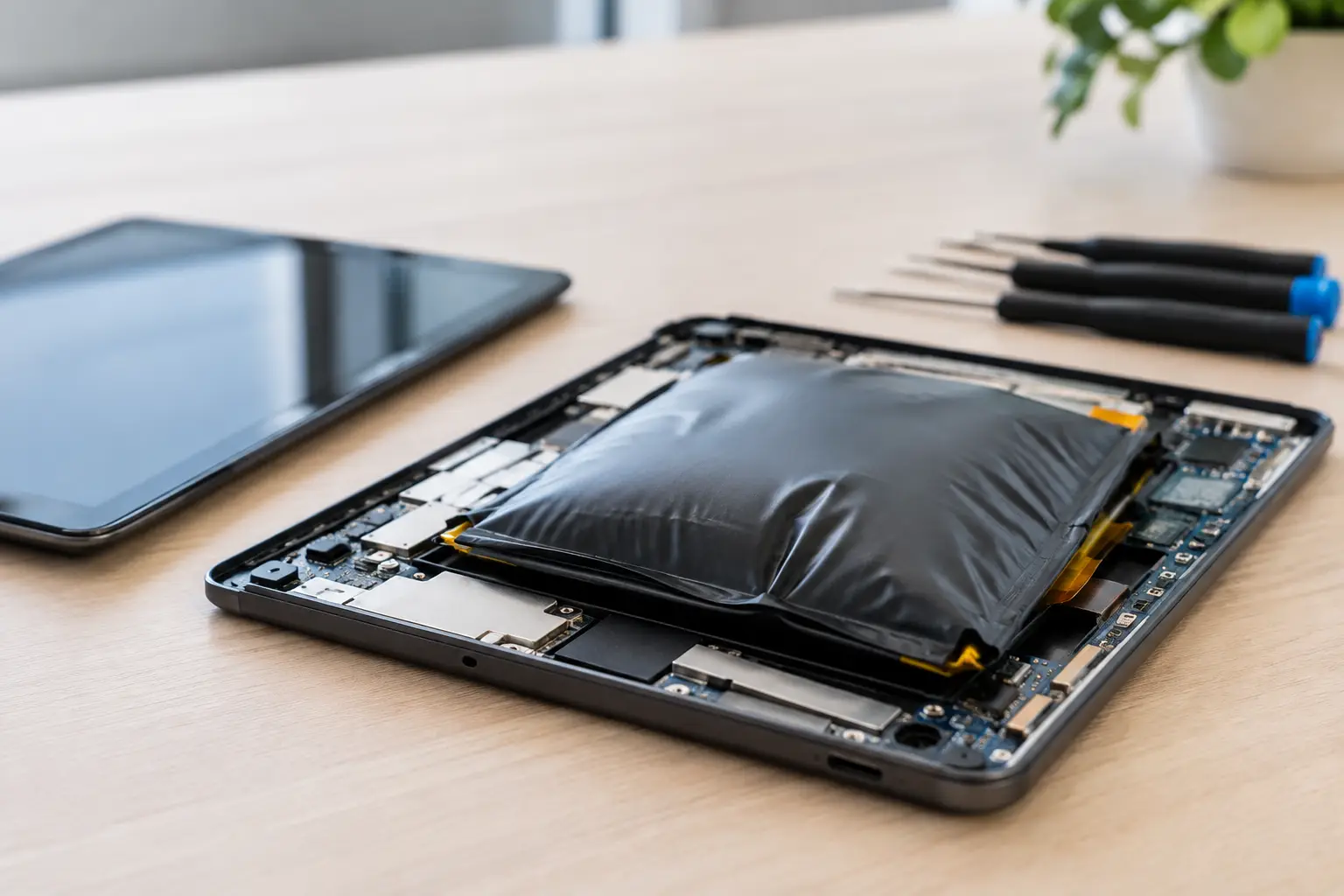
What a swollen tablet battery looks like
Battery swelling happens when gases build up inside a lithium-ion cell. Because a tablet has very little empty space inside, that pressure usually pushes outward. The screen may separate from the frame, the back cover may bow, or the tablet may rock on a flat table.
On an iPad, the display often lifts slightly along one edge before the gap becomes obvious. On many Samsung, Lenovo, Amazon Fire, and Android tablets, you may notice a raised back panel or a screen that no longer sits flush. A case can hide the early signs, so remove it if the tablet feels thicker than usual or the display feels unusually tight.
Other warning signs can include rapid battery drain, unexpected shutdowns, unusual warmth while charging, a chemical or sweet smell, and a screen that develops bright pressure spots. None of these symptoms confirms swelling by itself, but a visible gap in the housing should be treated as urgent.
Why tablet batteries swell
A battery does not swell because it is old in every case, but age is a common factor. Lithium-ion cells slowly degrade through normal charge cycles. Heat, physical damage, low-quality chargers, liquid exposure, and long periods connected to power can accelerate that wear.
Tablets are particularly vulnerable because many stay plugged in for long stretches. A family tablet may live on a kitchen counter charger. A work tablet may sit in a dock all day. A student device may be left charging under blankets or in a hot car. Modern devices have charging controls, but those controls cannot reverse a battery that is already failing internally.
The cause also affects the repair decision. If the battery is simply worn out, a battery replacement may restore the tablet at a reasonable cost. If the tablet has liquid damage, impact damage, or charging-circuit failure, replacing the battery alone may not solve the problem. That is why a real diagnostic matters instead of guessing based on one symptom.
Is the charger the problem?
A damaged or uncertified charging cable or power adapter can contribute to overheating and charging issues. However, it is not always the root cause of a swollen battery. The device’s charging circuit, battery age, and heat history matter too.
Do not test a swollen tablet with different chargers to see whether it improves. Continuing to charge it adds risk and can worsen the expansion. Set the charger aside and let a technician inspect both the device and the charging setup if needed.
What to do right now
First, unplug the tablet if it is charging. If the device is on and you can safely reach the power controls without pushing on the screen or back cover, power it down. Do not force a shutdown if the housing is severely warped or hot to the touch.
Place the tablet on a hard, nonflammable surface away from direct sunlight, heaters, fabric, paper, and anything you do not want exposed to heat. A ceramic tile, metal tray, or clear section of a concrete floor is better than a couch, bed, or drawer. Keep it away from children and pets.
Do not put it in a freezer, puncture the battery, bend the frame, clamp the screen, or try to flatten the battery. Online repair videos can make battery removal look easy, but swollen cells are more likely to tear when pried or pulled. Adhesive, display cables, and sharp tools make DIY removal especially risky on thin tablets.
If the device is hot, smoking, hissing, or leaking, move people away from the area and contact local emergency services if there is an immediate fire risk. Do not handle a smoking device. Once the situation is stable, it should be taken to an electronics repair professional or an approved battery recycling facility, not placed in household trash.
Can a swollen tablet battery be repaired?
The battery itself is not repaired. It is removed and replaced with a compatible new battery, then the tablet is tested for charging, power draw, touchscreen response, display damage, and frame fitment. The work can be straightforward, but it depends heavily on the model and the extent of the swelling.
On some tablets, the screen survives with no visible marks once the pressure is gone. On others, the display has permanent bright spots, touch dead zones, cracks, or adhesive damage. A technician should inspect the screen before quoting a battery-only repair, because reinstalling a damaged display can leave you with a tablet that powers on but is not pleasant or reliable to use.
There is also a value question. Replacing a battery in a recent iPad, Galaxy Tab, or premium work tablet often makes sense. For an older entry-level tablet with a cracked screen, weak storage, and a failing charge port, the smarter move may be a tested refurbished replacement. A clear quote should explain both options, not pressure you into the more expensive one.
What happens to your data?
Battery replacement usually does not erase data, but no hardware repair is completely risk-free. If the tablet still turns on and is safe enough to use briefly, back it up without charging it. Use cloud backup or transfer essential files over Wi-Fi if the battery has enough remaining charge.
If it will not power on, do not keep attempting to boot it. A repair shop can assess whether the device can be powered safely after the battery is addressed. Protecting your data starts with avoiding more damage to the board and display.
Why professional diagnostics save money
A screen lifting away from a tablet can look like a loose adhesive problem. Re-gluing it without checking the battery is a bad repair. The expanding cell will keep pushing, and it can crack a display that was still usable.
A proper diagnostic checks the battery condition, charging behavior, internal connectors, display pressure damage, and signs of corrosion or board trouble. For tablets with more than one issue, component-level diagnosis matters. Replacing parts at random can cost more than finding the actual fault first.
BuyCellFix provides free diagnostics for tablet issues, so you can get a clear repair path before approving work. You should receive an upfront quote, an explanation of any additional damage found, and a warranty on the completed repair. No surprises, no upsells, and no reason to keep using a device that is physically expanding.
Preventing the next battery failure
You cannot stop lithium-ion batteries from aging, but you can reduce the conditions that speed up damage. Keep the tablet out of hot vehicles, do not charge it under pillows or blankets, and use a quality cable and power adapter that match the device’s requirements. Replace frayed cables rather than taping them up.
If a tablet stays plugged in for work, school, or home control duties, give it airflow and avoid leaving it on a heat-producing surface. Remove bulky cases during heavy gaming, video calls, or other tasks that make the device run hot. Battery health is less about chasing a perfect charging percentage and more about avoiding heat, physical stress, and neglected warning signs.
A lifted screen is the warning sign to take seriously. Put the tablet down, keep it off the charger, and get a proper assessment before the battery damages the rest of the device.