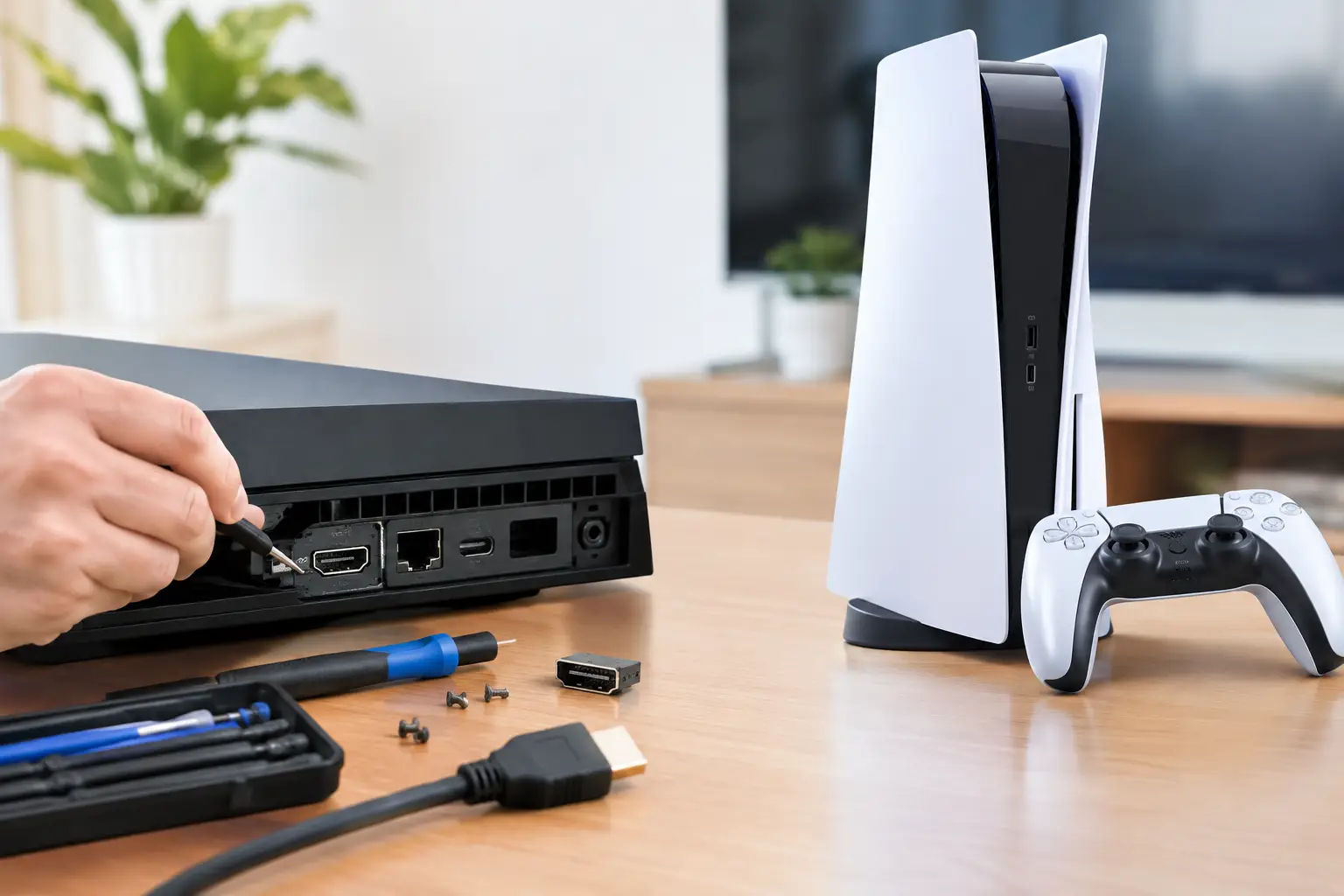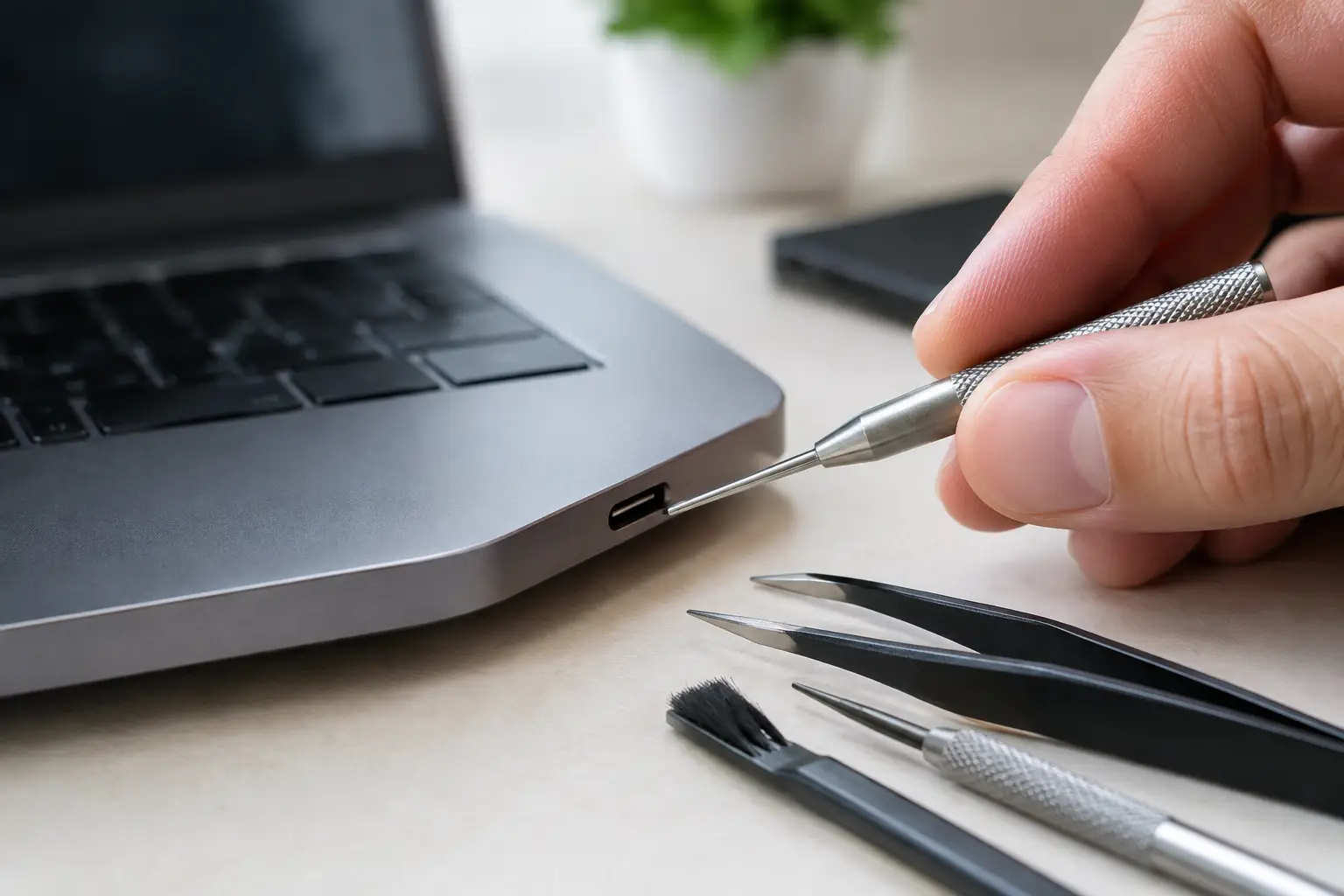


A cracked screen is stressful. So is handing over the phone that holds your photos, banking apps, school files, and work messages. The question behind “réparation efface données” is simple: will a repair shop wipe your device? In most standard hardware repairs, the answer is no. A screen, battery, charging port, camera, HDMI port, or joystick repair should not erase your files.
That said, no honest technician should promise that data is risk-free in every situation. Some failures affect the storage, operating system, or main board itself. A repair may also require testing that you need to prepare for. The right move is to understand the repair, back up what you can, and work with a shop that explains the risks before work starts.
Does réparation efface données during a normal repair?
Most repairs do not require a factory reset. Replacing an iPhone screen does not normally touch the phone’s storage. The same goes for a Samsung battery replacement, an iPad charging port repair, a Nintendo Switch Joy-Con repair, or a PS5 HDMI port replacement. Your apps, photos, messages, and settings stay where they are.
The technician is repairing a physical component, not reinstalling the operating system. On a laptop, a keyboard, display, DC jack, fan, or charging-port repair also usually leaves the drive and its files untouched.
There are exceptions. If the device has severe liquid damage, random restarting, failed updates, boot loops, or a board-level fault, data preservation becomes less predictable. The problem may already be affecting the device before the repair begins. A phone that will not power on can have a damaged display, but it can also have corrosion or a fault on the motherboard.
That difference matters. Replacing a bad screen is straightforward. Diagnosing a damaged power circuit or data line may require component-level work under a microscope. Board repair can save a device that another shop would write off, but the goal is first to restore stable function. Data recovery is not automatically guaranteed.
Repairs that are low risk and repairs that need more caution
Routine part replacement is generally low risk for your stored data. That includes broken screens, worn batteries, cameras, speakers, microphones, buttons, charging ports, console HDMI ports, and many laptop hardware issues.
Software service is different. An operating system reinstall, factory reset, firmware recovery, or device replacement can remove local data. Manufacturer-authorized processes may also require a reset for security and verification reasons. If a repair involves software, the technician should tell you clearly before proceeding.
Main-board work sits in the middle. Micro-soldering repairs can often preserve data because the original board and storage remain in the device. This is one reason board-level diagnosis matters. Replacing an entire phone or logic board may solve a problem, but it does not bring the old board’s local files along with it.
For devices with liquid damage, time matters. Do not keep charging a wet phone or laptop to see if it “comes back.” Power can push corrosion further into the board. Turn it off if possible and bring it in for a diagnostic. Fast action can improve the odds of both repair and data preservation.
Back up before you need the backup
If your device still turns on and responds, make a backup before repair. Do it even for a simple screen replacement. Not because the repair is expected to erase data, but because a backup protects you from the original damage, an unexpected failure, or a future loss.
For a phone, confirm that your cloud backup has finished and that important photos are syncing. If storage is full, move the essentials first: family photos, work documents, authenticator recovery codes, notes, and anything stored only on the device. On a computer, use a current backup drive or cloud backup and make sure you can actually access the files afterward.
A quick glance at a backup setting is not always enough. Check the date of the last successful backup. If it says weeks ago, run one now. If the device is too damaged to back up, tell the technician. That detail can change the repair approach.
Protect your privacy without blocking the repair
A repair shop may need your passcode to test the device after a screen, battery, or charging repair. Without access, it can be difficult to confirm that the touchscreen, cameras, speakers, Face ID or fingerprint functions, charging, and calls work correctly.
You still control access. Remove sensitive physical items such as cards from a phone case, and log out of accounts only if the repair requires it. Do not erase the device unless you have a verified backup or the technician confirms that a reset is necessary. Erasing a phone with an unresolved hardware issue can make setup and testing harder, not safer.
Before you hand it over, disable payment cards if that gives you peace of mind, and make sure you know your account password. On Apple devices, do not remove Find My or sign out of your Apple Account unless specifically required for an authorized service process. On Android, know your Google account credentials. Activation locks are theft protections, and they can prevent proper post-repair testing or setup when a reset is needed.
A professional shop should explain why access is requested, handle devices securely, and return them with the same personal data in place whenever the repair allows. Vague answers are a red flag. Ask what will be tested, whether a reset is expected, and what happens if deeper damage is found.
What to ask before authorizing the repair
A clear diagnostic removes guesswork. Ask whether the issue appears to be a replaceable part, software failure, or motherboard problem. Ask whether the quoted repair requires a reset and whether the original board will remain in the device.
If the device does not turn on, ask whether the first goal is data-preserving repair or simply restoring basic power. These are related but not identical. For example, a failed charging port may prevent a phone from starting, while a board fault may need more advanced work before the phone can boot long enough to back up.
Also ask about the warranty and the quote. A good repair process includes an upfront explanation of what is known, what is still being diagnosed, and what approval is needed if the problem turns out to be more complex. No surprises and no pressure to replace a device before the actual fault is identified.
When a factory reset is actually the right choice
A reset makes sense when software corruption is the confirmed issue, when you are selling or trading in the device, or when an authorized service workflow requires it. It is also the right final step for a device you are giving away. In those cases, back up first, sign out properly, erase the device through its settings, and verify that activation locks are removed after the erase.
For selling a broken device, do not assume a damaged screen means your information is inaccessible. If the phone still powers on, erase it before selling. If it cannot be erased normally, a reputable buyer should explain the condition, the account-lock requirements, and how secure data handling works.
At BuyCellFix, the practical approach is simple: start with a free diagnostic, identify whether the fault is a part, software, or board issue, and explain the data risk before repair begins. Many devices can be fixed the same day without touching personal files. Complex failures deserve more careful expectations, not a guess and an automatic replacement recommendation.
Your data is worth protecting, but a damaged device does not automatically mean a wiped device. Back up when you can, ask direct questions, and choose repair based on the actual fault – not the fear that every repair erases everything.