
Your iPhone is ringing, a video is playing, and you can barely hear it – or hear nothing at all. Before you assume the speaker has failed, there are a few practical checks worth making. Knowing how to fix iPhone speaker problems starts with identifying which speaker is affected, ruling out settings and Bluetooth issues, and avoiding cleaning methods that can cause more damage.
First, Find Out Which iPhone Speaker Is Not Working
Most iPhones have more than one audio output. The bottom speaker handles music, calls on speakerphone, alarms, and videos. The small earpiece at the top is used when you hold the phone to your ear during a call. On many newer models, the earpiece also works with the bottom speaker for stereo sound.
Play a song or video, then turn the volume up using the side button. If sound is weak or missing from the bottom, the lower speaker grille or speaker assembly may be the issue. Make a regular phone call and hold the phone to your ear. If the caller sounds faint there but media plays normally, you are likely dealing with the earpiece mesh, earpiece speaker, or a call setting instead.
This distinction matters. A blocked earpiece mesh can make every call sound muffled without affecting music. A damaged bottom speaker can leave calls at the ear normal while alarms and videos sound distorted.
How to Fix iPhone Speaker Issues Before Repair
Start with the simple checks that do not put the phone at risk. Remove the case first. Some thick, damaged, or poorly fitted cases can partially cover a bottom grille or collect lint around it.
Next, check your volume while audio is actively playing. The ringer volume and media volume are not always the same. Go to Settings, then Sounds & Haptics, and make sure the ringer and alerts level is not turned down if the problem is missed calls or quiet alerts. If music or video audio is low, adjust volume while that music or video is playing.
Bluetooth is another common culprit. Your iPhone may be sending audio to earbuds, a car system, or a nearby speaker you forgot was connected. Open Control Center and check the audio output selector. Turn Bluetooth off temporarily and test the phone again. If the speaker works immediately, there is nothing wrong with the iPhone hardware.
Also check whether the issue happens in every app. Test a ringtone, a video, a voice memo, and a phone call. If only one app has no sound, review that app’s in-app volume settings, permissions, and updates before blaming the speaker.
Restart and Update the iPhone
A restart can clear a minor iOS audio glitch. Power the iPhone off fully, wait a few seconds, and turn it back on. Then test the sound again.
If the problem began after an app installation or an iOS update, check for the latest available iOS version. Updates can correct software bugs, but do not install one just because the speaker sounds muffled after a drop or water exposure. Physical symptoms usually point to a physical problem.
Clean the Speaker Grilles Carefully
Pocket lint, makeup, dust, and dried moisture can clog the bottom grilles and the earpiece mesh. That buildup often makes sound quiet, tinny, or uneven. Cleaning can help, but aggressive cleaning can turn a simple blockage into a repair.
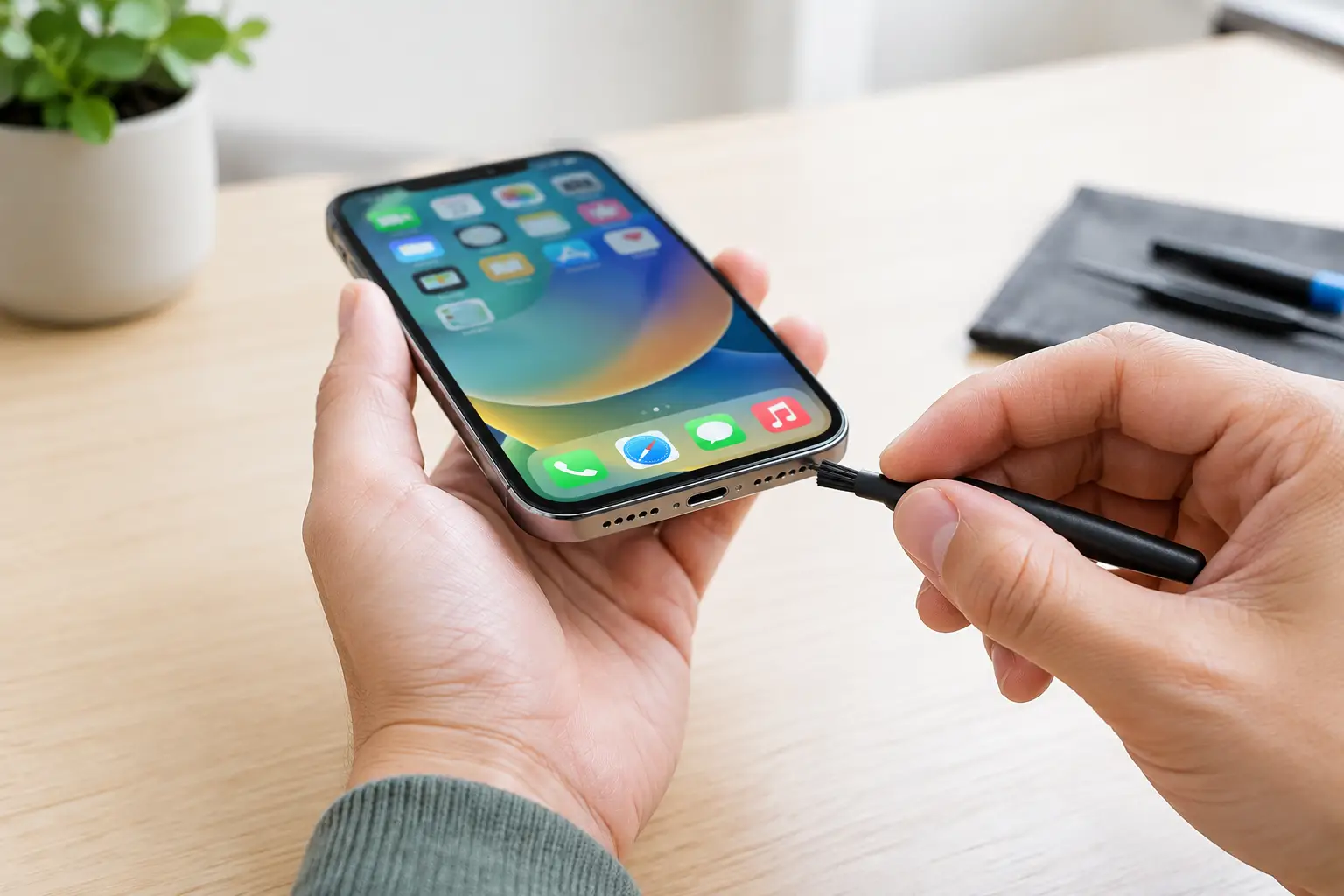
Use a clean, dry, soft-bristled brush and gently brush across the grille. Hold the phone so debris can fall away rather than get pushed deeper inside. A dry microfiber cloth can help with surface residue around the openings.
Do not pour liquid into the speaker opening. Do not use a pin, toothpick, needle, metal tool, or anything sharp enough to puncture the mesh. Avoid canned compressed air too. High-pressure air can force debris or moisture farther into the phone and can damage delicate internal components.
The earpiece opening deserves extra care. Its mesh is fine and easy to damage. If it remains muffled after a gentle surface clean, stop there. A technician can inspect and clean it properly or determine whether the earpiece itself is failing.
Check for Water, Drops, and Distortion
If your iPhone speaker crackles after getting wet, do not charge it right away. Disconnect cables, remove the case, and let the phone air-dry in a well-ventilated area with the speaker facing down. Do not put it in rice. Rice does not remove moisture from inside the phone and loose particles can create another problem.
Water resistance is not a guarantee against liquid damage. Seals wear down with age, drops, heat, and previous repairs. Even a brief splash can leave mineral residue behind, which may cause corrosion or distorted audio later.
A speaker that buzzes, crackles, cuts in and out, or sounds blown after a drop may have a torn speaker diaphragm, a loose connection, or board-level damage. Cleaning and resetting will not repair those faults. Continuing to blast audio at maximum volume will not fix it either, and may make distortion more obvious.
When the Problem Is Not Actually the Speaker
Some sound complaints come from the microphone, call routing, or accessibility settings. If people cannot hear you, but you can hear them, the speaker is probably fine. Test a Voice Memo recording. If the recording is quiet, distorted, or blank, the microphone needs attention instead.
If calls sound low only when the phone is held to your ear, check whether the call volume was adjusted during an active call. You can also turn off Phone Noise Cancellation in Accessibility settings as a test on models that offer it. If sound changes, the issue may be related to call processing rather than the speaker itself.
Hearing aid mode, headphone routing, and audio balance settings can affect how sound behaves. In Accessibility, check Audio/Visual settings and make sure the left-right balance slider is centered. This is especially useful when one side of stereo sound seems missing.
When to Bring Your iPhone in for Diagnosis
Bring the phone in when cleaning, settings checks, and a restart do not restore normal sound – especially if the issue followed a drop, liquid exposure, charging-port damage, or an earlier repair. An iPhone can have a speaker problem caused by more than the speaker module. The charging-port flex cable, earpiece assembly, connectors, corrosion, or the audio circuitry on the board can all affect sound.
That is why a real diagnostic matters. Replacing a speaker part without testing the surrounding components can waste time and money. At BuyCellFix, the goal is to identify the failed part first, explain the repair clearly, and give you an upfront quote. For complicated cases, board-level micro-soldering diagnostics can determine whether a repair is possible before anyone pushes you toward replacing the phone.
Back up your iPhone if it still works normally enough to do so. Speaker repairs often do not affect data, but any device with liquid damage or unstable behavior can worsen without warning. A backup protects your photos, messages, and work files.
Avoid These DIY Speaker Fixes
Be skeptical of online tricks that promise to shake water out with ultra-loud tones or claim to clean a speaker using adhesive, glue, or household chemicals. A tone may move a small amount of surface moisture in limited situations, but it will not repair corrosion, a torn speaker, or water trapped deeper in the phone. Adhesives and liquids can leave residue on the mesh and create a bigger job.
Opening an iPhone at home also has trade-offs. It can damage the display, break water-resistance seals, strip screws, or disconnect delicate cables. If your phone is older and the repair cost is close to its value, a tested refurbished replacement may make more sense. If the device is otherwise in good shape, a targeted speaker or earpiece repair is usually the more practical move.
Clear sound is not a luxury when your phone is your alarm clock, work line, camera, and connection to family. Start with the safe checks, stop before a cleaning attempt becomes damage, and get a proper diagnosis when the problem points to hardware.