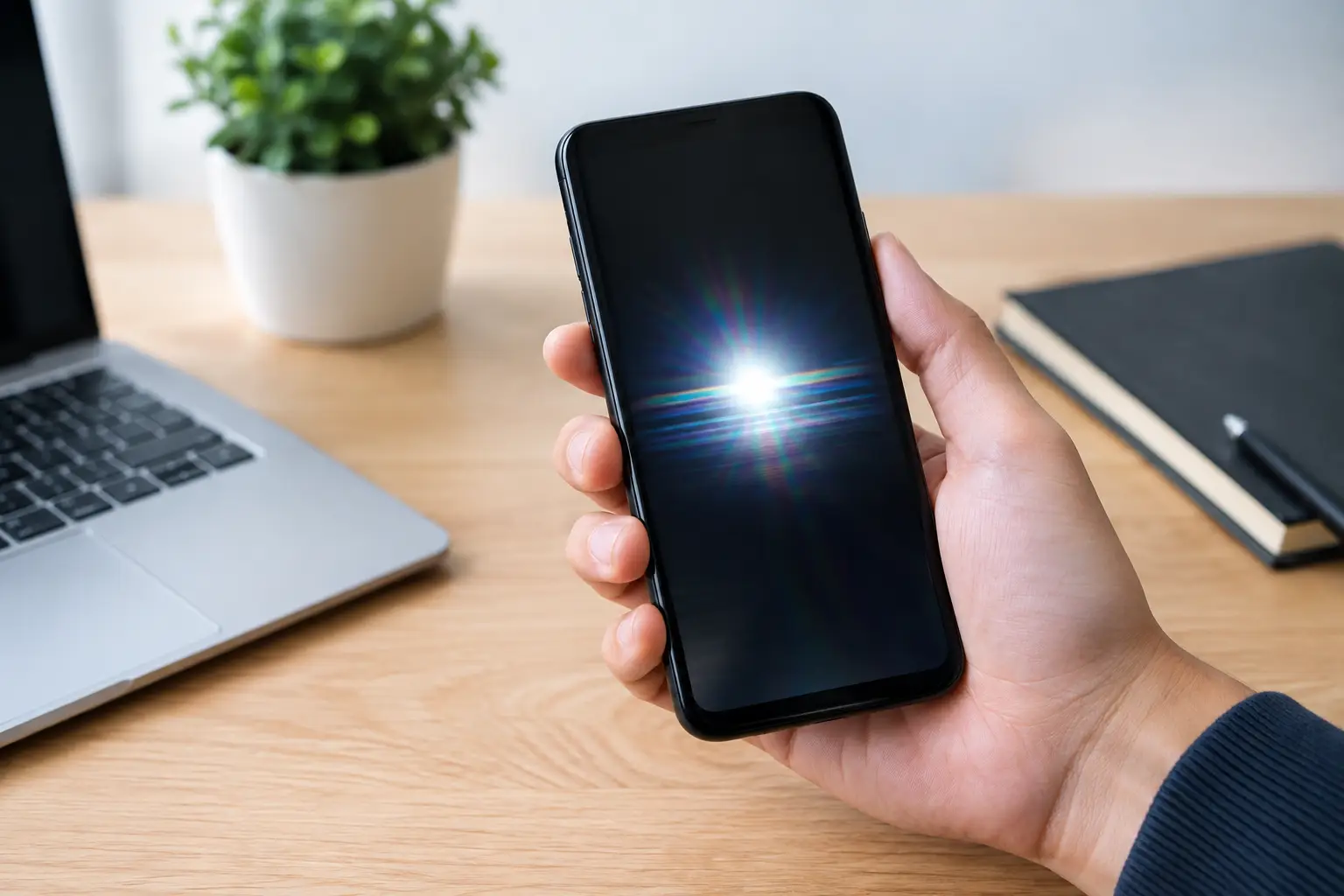

A screen that flashes, pulses, briefly goes black, or changes brightness on its own is more than annoying. If you searched causes écran téléphone clignote, you need to know whether a quick setting change will solve it or whether your phone is developing a hardware fault. The difference matters. Continuing to use a phone with liquid damage, a loose display connection, or a failing battery can turn a manageable repair into a larger one.
Causes écran téléphone clignote: Start With the Pattern
Before changing settings or restarting your phone ten times, pay attention to when the flickering happens. Does it start only at low brightness? Only in one app? After a drop? While charging? Does the display flicker even on the lock screen?
Those details point technicians in the right direction. Flickering limited to one app is usually software-related. Flickering that begins after impact, moisture exposure, or a screen repair is more likely connected to the display, its flex cable, the battery, or the board that controls the screen.
A phone that flickers once after a software update is not necessarily failing. A phone that flashes green, shows vertical lines, goes black when pressed near an edge, or gets worse each day needs attention sooner rather than later.
1. Brightness Settings and OLED PWM Flicker
Many OLED phones control brightness by rapidly switching pixels on and off. This is called pulse-width modulation, or PWM. At low brightness, some people notice it as flicker or experience eye strain, headaches, or a pulsing effect on a white background.
Try raising brightness to around 50 percent and see whether the issue changes. Turn off adaptive brightness, extra dim mode, and any battery-saving display setting temporarily. On some phones, disabling features such as True Tone, Night Shift, or dark mode can also help isolate whether the problem is related to display behavior rather than a failed part.
This is not usually a repair issue if the screen looks normal at higher brightness and there are no lines, black spots, touch problems, or recent damage. However, a new and obvious flicker on an OLED screen should not automatically be blamed on PWM. It could still be early screen damage.
2. A Buggy App or Software Glitch
An app that freezes, flashes, or changes the screen refresh rate can make the display look faulty when the panel is fine. Start with the basics: force-close the app, update it, and restart the phone. If the problem started immediately after installing an app, remove that app and test the device again.
Install available operating system updates as well. Display drivers and refresh-rate issues can be corrected through updates, especially on newer Android models.
For Android phones, Safe Mode is useful because it starts the device with most downloaded apps disabled. If the flicker disappears in Safe Mode, an app or software conflict is the likely cause. Back up your data before considering a factory reset. A reset can rule out software trouble, but it will not repair a damaged screen, a corroded connector, or a board-level fault.
3. A Cracked, Damaged, or Failing Screen
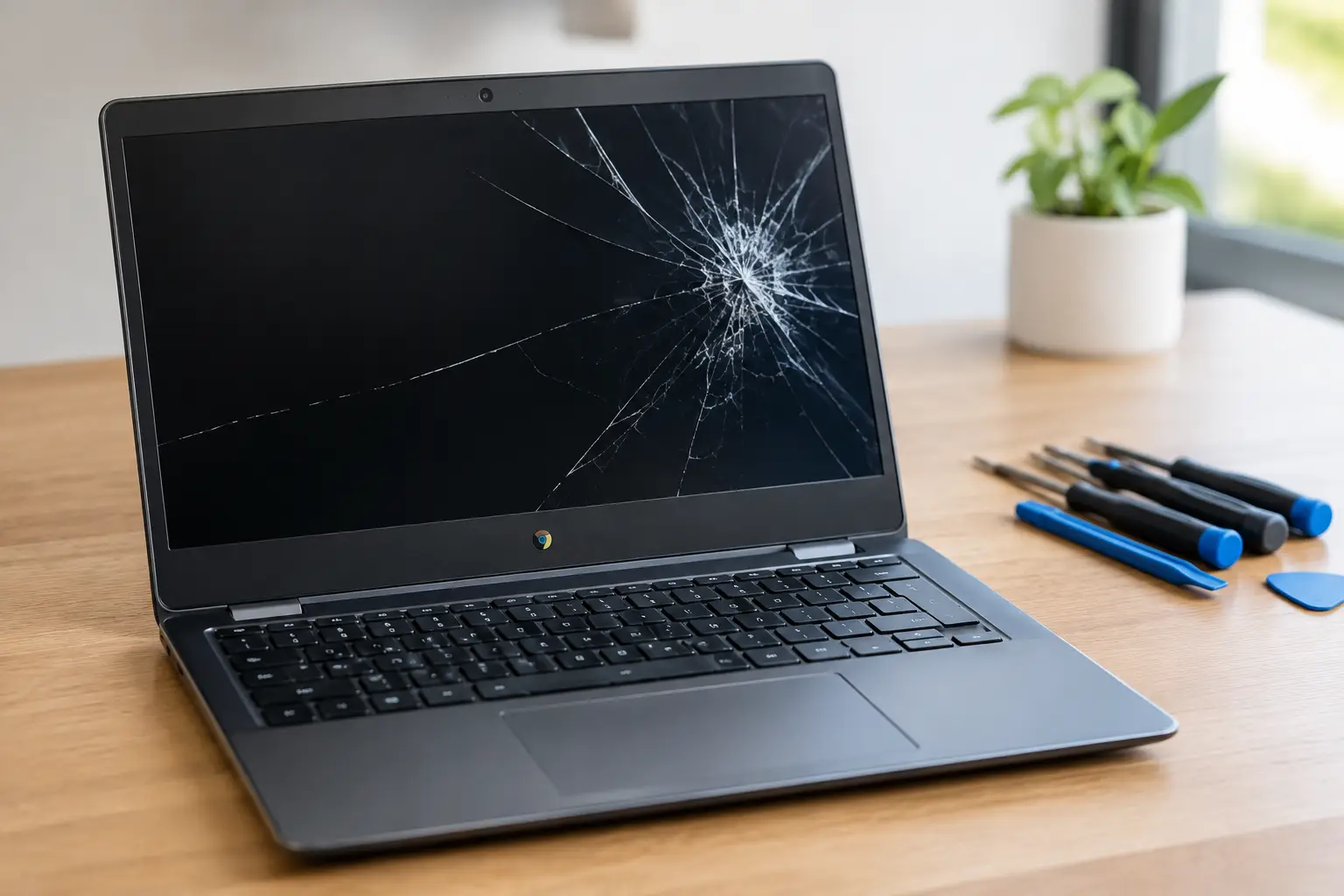
A cracked screen does not have to be shattered to cause flickering. One hard drop can damage the OLED or LCD layers beneath intact glass. You may notice a flashing section of the screen, colored lines, a green or white glow, black ink-like patches, dead touch areas, or flickering when you press the phone frame.
OLED displays are especially vulnerable to impact damage. They can look almost normal at first, then begin flashing or turning green days later as the damaged panel deteriorates.
There is no reliable home fix for physical display damage. Restarting the phone, changing brightness, or applying pressure may temporarily alter the symptom, but it can also make the damage worse. A proper screen replacement is the usual fix when the panel itself has failed.
The quality of the replacement matters. Low-grade aftermarket screens can have poor brightness, inaccurate colors, weak touch response, or their own flicker problems. Ask what type of screen is being installed and whether the repair includes a warranty. No surprises, no vague answers.
4. A Loose Display Connector After a Drop or Repair
Your screen connects to the phone’s motherboard through a small flex cable and connector. A drop can shift internal components. A previous repair can also leave a connector partially seated, damaged, or contaminated. The result may be intermittent flickering, a screen that works only at certain angles, random blackouts, or touch issues.
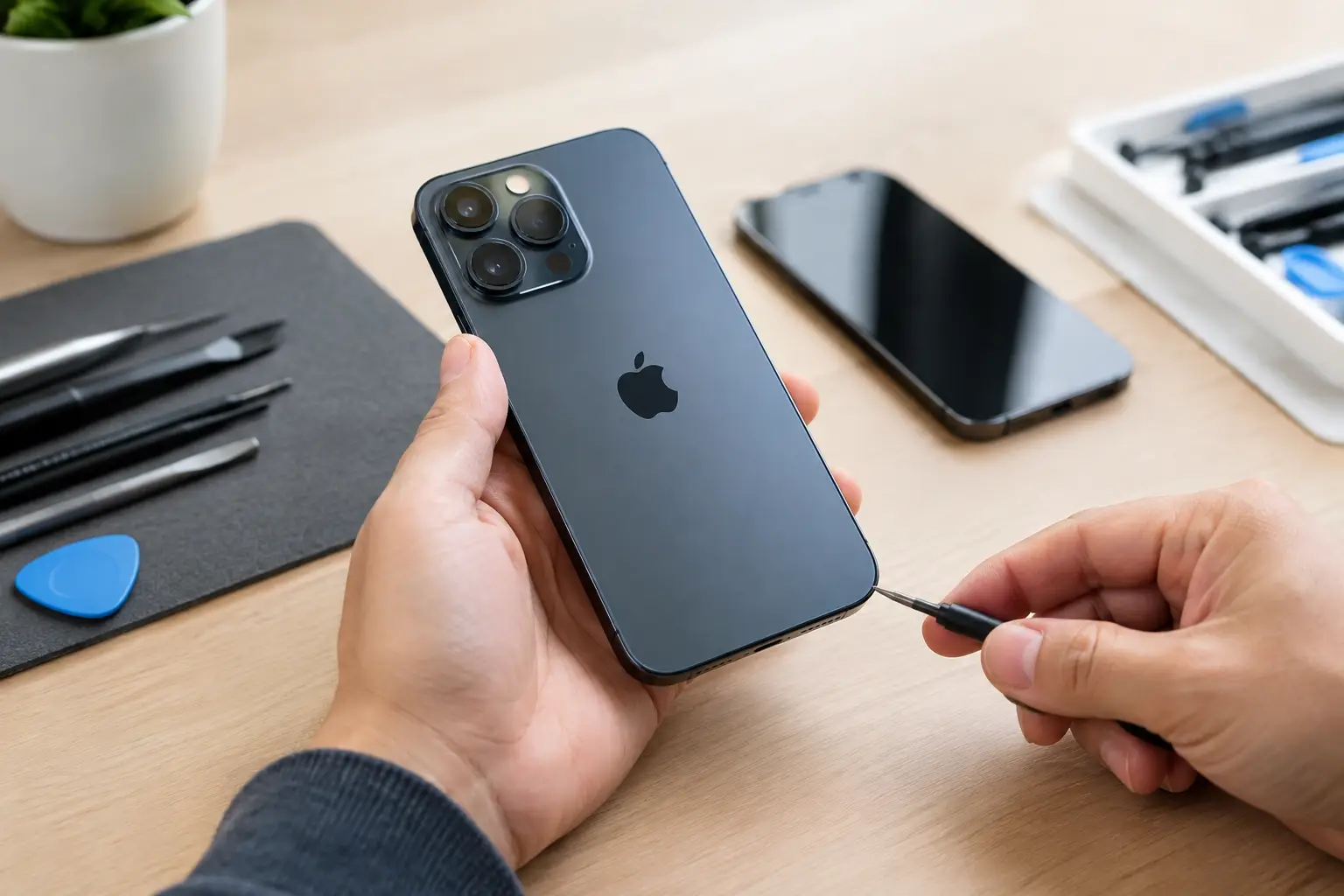
This is not a job for a kitchen-table toolkit unless you have the right equipment and experience. Modern phones use delicate connectors, strong adhesives, and tightly packed batteries. Disconnecting or reconnecting a display incorrectly can damage the connector on the motherboard, which is a much more involved repair than replacing a screen.
A technician should inspect the display connection, test the phone with a known-good screen when appropriate, and check for damage around the connector. That testing prevents the common mistake of paying for a new screen when the actual issue is on the board.
5. Battery Problems and Unstable Power
A swollen, worn-out, or damaged battery can cause screen flickering because the phone is not receiving stable power. You may also notice sudden shutdowns, overheating, rapid battery drain, random restarts, or a screen that flickers more while gaming, video calling, or charging.
Do not ignore a screen that is lifting away from the frame. A swollen battery can push the display upward and create a fire risk. Stop charging the phone, avoid squeezing it back into place, and have it inspected promptly.
Charging accessories can cause similar symptoms. Test with a known-good certified cable and charging block, then try a different outlet. If the flickering only happens while charging, the cable, adapter, charging port, battery, or power-management circuitry may be involved. It depends on the device and the pattern, which is why a diagnosis beats guessing.
6. Water Damage and Corrosion
Water damage is not always obvious. A phone can survive a splash, work normally for a day or two, then develop flickering as moisture reaches a display connector or corrosion forms on the board. Steam, rain, a wet countertop, and a pocket exposed to sweat can all be enough to create trouble.
If your phone got wet and now flickers, turn it off if possible. Do not keep charging it to see whether it improves. Do not use rice. Rice does not remove corrosion or clean contaminants from connectors.
Professional inspection can identify whether moisture reached the screen connection, battery area, or motherboard. In some cases, cleaning and repairing a damaged component can save the phone. In other cases, corrosion has already affected multiple circuits. Fast action gives you better odds.
7. Motherboard or Display Circuit Failure
If a tested-good screen still flickers, the fault may be on the phone’s motherboard. The display circuit manages communication and power between the board and the screen. Damage from drops, liquid exposure, heat, failed charging components, or previous repair work can affect that circuit.
This is where parts-swapping shops often stop and recommend replacing the device. Sometimes replacement is the practical choice, especially for an older phone with several issues. But a board fault does not always mean the phone is beyond repair.
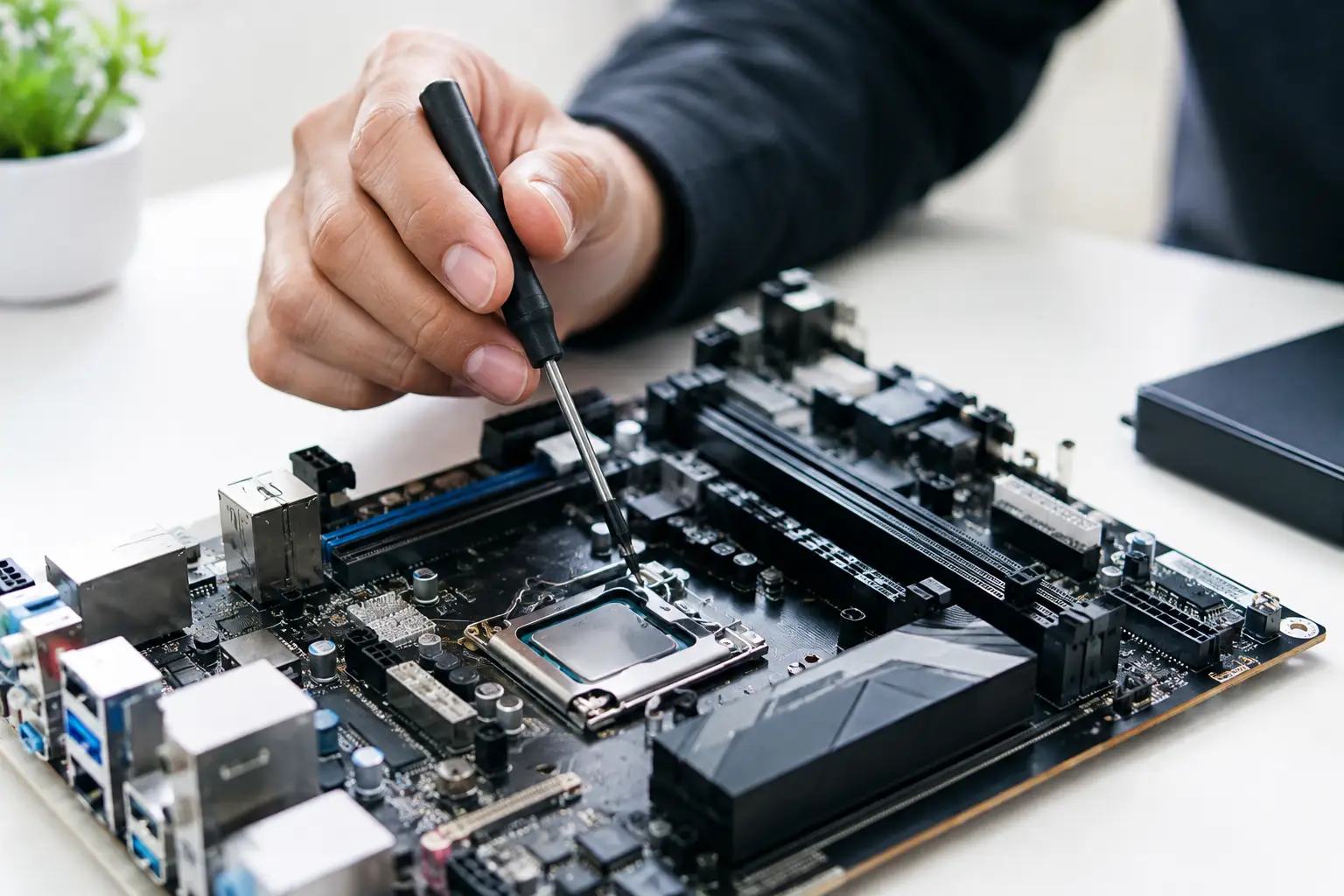
Component-level micro-soldering can repair certain damaged connectors, filters, display circuits, and power components directly on the board. This work requires microscope-level inspection, specialized tools, and proper testing. It is not the same as installing another screen and hoping for the best.
What You Can Safely Try Before Repair
Back up your phone as soon as you can, especially if the flickering is getting worse. Then restart it, install pending updates, test with brightness and adaptive display settings changed, and remove any app that appears connected to the issue. Test a different certified charger if the problem happens during charging.
Stop troubleshooting at home if the screen is cracked, lifting, showing colored lines, turning black repeatedly, overheating, or flickering after liquid exposure. Avoid pressing on the screen or bending the phone. Those actions can turn a loose connection into a damaged connector or worsen a failing OLED panel.
At BuyCellFix, a free diagnostic can separate a screen issue from a battery, connector, or board-level problem before you commit to a repair. You get an upfront quote and a clear explanation of what failed, not a blanket recommendation to replace your device.
If your phone still works long enough to back up your photos and messages, do it now. Then get the flicker checked while the repair may still be smaller, faster, and less expensive than a full device replacement.