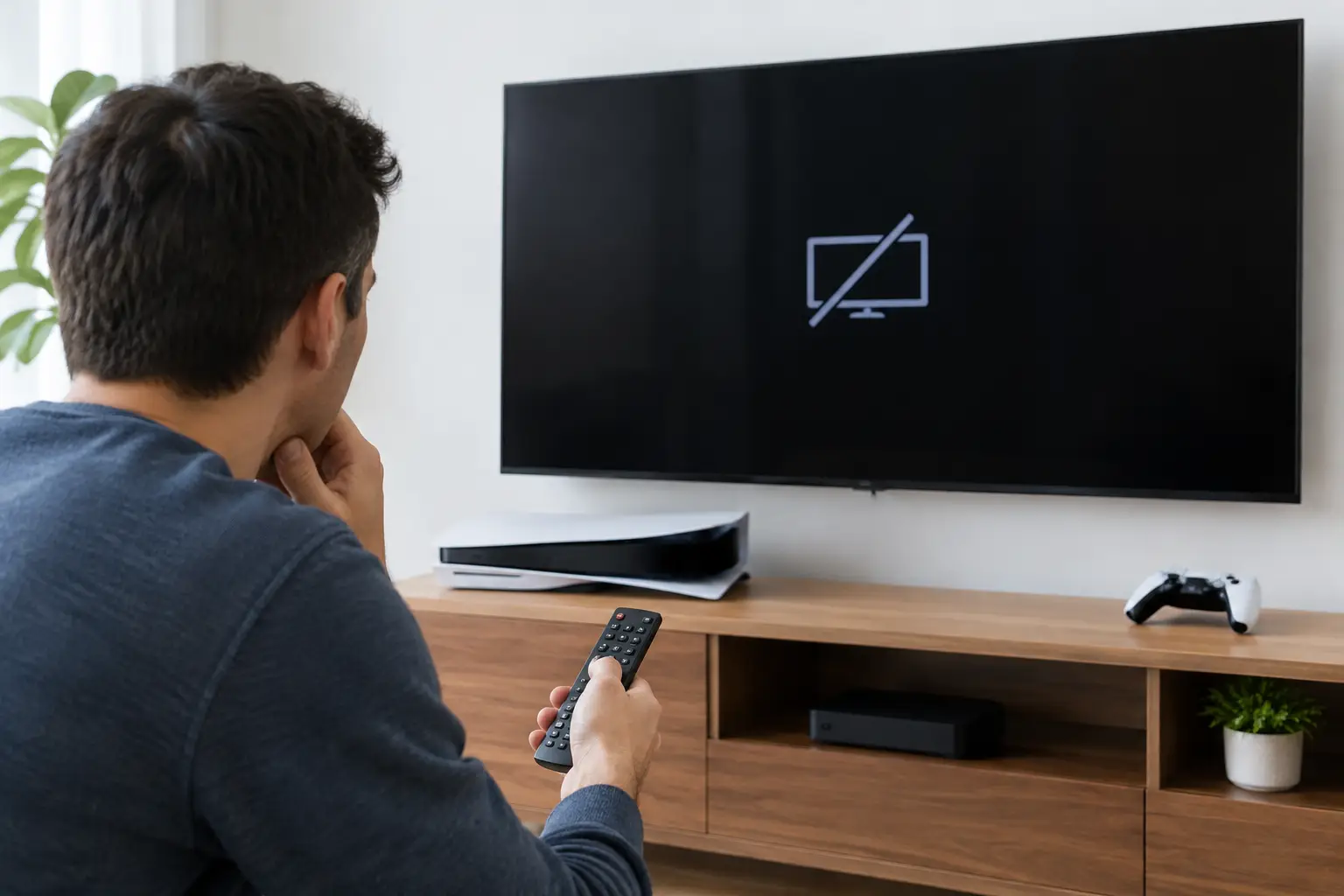

Your game is ready, your controller turns on, and the TV says “No Signal.” If you searched cas console sans signal, the problem is usually somewhere between the console’s HDMI output and the TV’s selected input. That can be a simple cable issue, a setting mismatch, or a damaged HDMI port that needs real board-level repair.
The good news: you do not need to guess or buy a new console right away. Start with a few checks that isolate the problem. If those checks do not bring the picture back, you will know when it is time to stop troubleshooting and have the console inspected.
Cas Console Sans Signal: Start With the Simple Checks
A console without video is frustrating because the system may still appear to work. You might hear startup sounds, see the power light, or connect a controller, but get a blank screen. Before assuming the HDMI port is bad, rule out the external connection.
First, confirm that your TV is set to the correct HDMI input. Modern TVs may have several ports, and “HDMI 1” is not always the one your console is using. Use the TV remote to switch inputs manually instead of relying on automatic detection.
Next, turn off both the TV and console completely. Unplug them from power for about a minute, then reconnect the HDMI cable firmly at both ends. Avoid forcing the connector. An HDMI plug should slide in straight and sit securely without excessive movement.
Test the console with another HDMI cable and, if possible, another TV or monitor. This is the fastest way to separate a console fault from a bad cable or a TV input issue. If the console displays normally on another screen, the console itself is probably not the problem.
It also helps to disconnect HDMI splitters, capture cards, receivers, and soundbars during testing. Those accessories can interrupt the handshake between the console and display, especially after a power outage, firmware update, or resolution change. Connect the console directly to the TV first.
When the Console Turns On but the Screen Stays Black
If a known-good cable and display still show no signal, look at the console’s behavior. A PS5, Xbox, or Nintendo Switch can lose video because its output settings no longer match the display. This happens most often after moving the console to a different TV, switching from a 4K screen to an older display, or enabling features such as high refresh rate or HDR.
For PlayStation consoles, Safe Mode can allow you to change the video output without seeing the normal home screen. Shut the console down fully, then use the Safe Mode startup sequence for your model. From there, select an option that changes the video output or resolution. If the image returns at a lower resolution, the issue may be a settings conflict rather than failed hardware.
Xbox consoles also have a low-resolution startup mode that can help when the console is sending a format the TV does not support. The exact button combination varies by Xbox model, so make sure you follow instructions for your specific console. Once video returns, update the display settings gradually instead of turning every advanced option on at once.
Nintendo Switch troubleshooting is a little different because the console can work normally in handheld mode while failing to output video through its dock. Test it directly in handheld mode, then inspect the dock, power adapter, and HDMI cable. A third-party dock or charger can create problems, so use the original Nintendo power adapter when testing whenever possible.
If resetting the output restores the picture, monitor the console for a few days. If no signal comes back every time you move the cable or restart the system, there may still be physical wear at the HDMI port.
Check the HDMI Port Without Making It Worse
Look into the HDMI port using a flashlight. You are looking for obvious signs of damage: bent internal pins, a loose port, a port pushed inward, debris, or a connector that no longer holds the cable firmly. Do not insert metal tools, toothpicks, or compressed air at close range. One bent pin can turn a repairable port into a more complicated board repair.
A healthy HDMI port feels stable. The cable should not sag, rock noticeably, or lose the signal when lightly touched. If the image cuts in and out when the cable moves, the port may have cracked solder joints or damaged pins.
This is especially common on PS5 consoles. The HDMI port is mounted directly to the motherboard, and repeated sideways pressure from a tight entertainment center, a hanging cable, or an accidental pull can damage the port and the tiny connection points underneath it. The same type of damage can happen on Xbox Series X, Series S, PS4, and Nintendo Switch consoles.
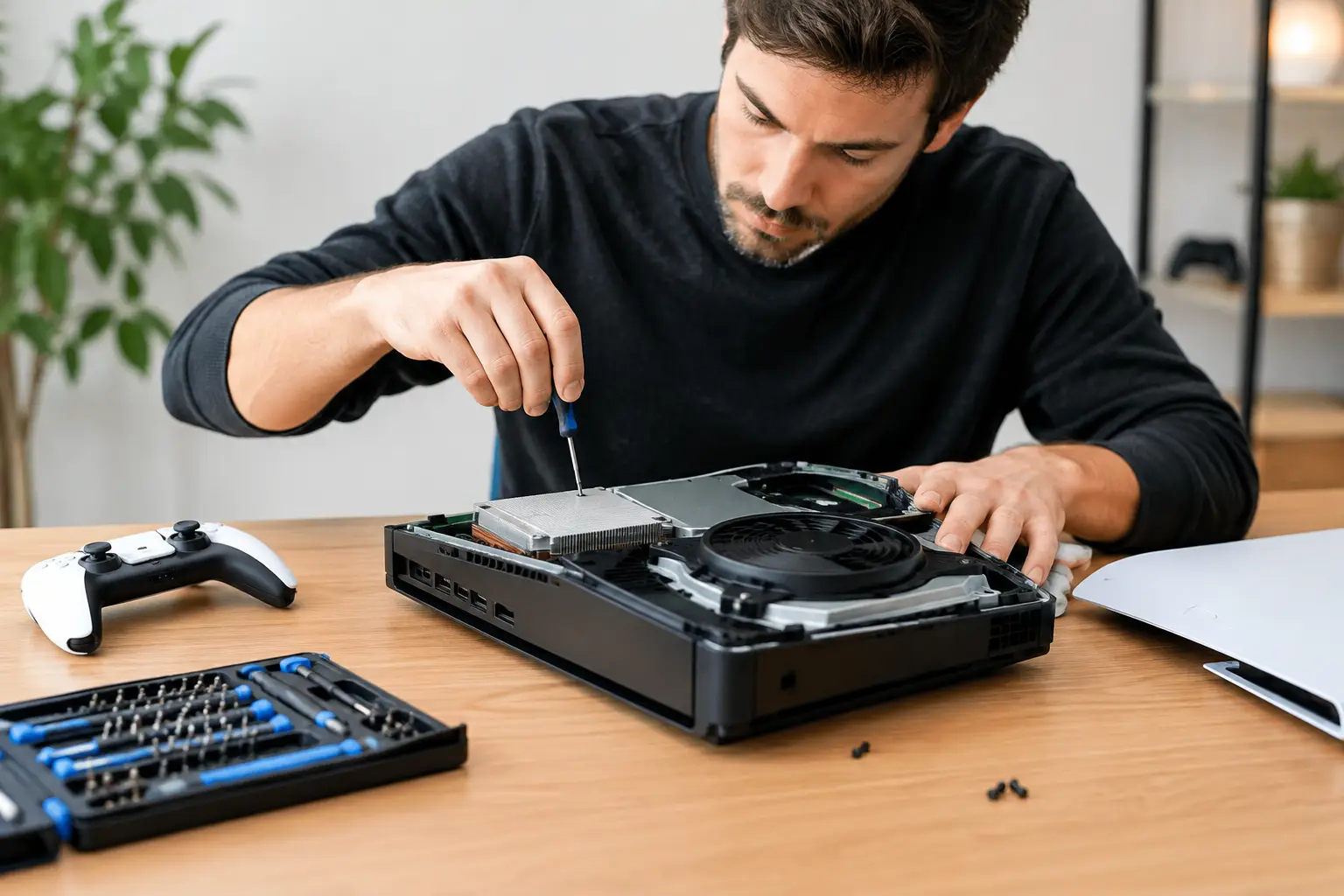
A loose port is not a cable problem, and replacing the cable again will not fix it. It needs to be removed and replaced using micro-soldering equipment. That work requires heat control, microscope inspection, and testing of the surrounding HDMI circuit. A rushed repair can lift pads from the board or miss damage to nearby filters, diodes, or HDMI encoder components.
Why an HDMI Port Repair Is Not Always the Same Repair
Not every no-signal console has a broken port. A port can look perfect while the fault sits deeper on the board. The HDMI encoder chip, signal filters, power lines, or traces connecting the port to the motherboard can fail after a surge, liquid exposure, overheating, or an earlier bad repair.
That is why a proper diagnostic matters. A parts-swapping shop may see no video and recommend replacing the whole motherboard or console. In some cases, replacement makes sense. If the board has extensive liquid corrosion or multiple failed components, repair may not be cost-effective. But a single damaged HDMI circuit component can often be repaired at the board level for much less than replacing the console.
At BuyCellFix, the goal is to identify the failed part before quoting a repair. For an HDMI issue, that means checking the port physically and testing the related circuit, not simply guessing based on a black screen. You get an upfront quote after the diagnostic, with no surprise add-ons for problems that should have been checked from the start.
Do Not Ignore Other Symptoms
A no-signal screen can appear alongside other issues that point to a larger problem. If the console shuts down shortly after starting, runs extremely hot, has liquid damage, or does not fully power on, HDMI may only be part of the story.
A PS5 or Xbox that powers on but quickly turns off may have overheating, power delivery, or board trouble. A console with a blinking light and no video may be stuck during startup. If you hear unusual fan noise or smell burning electronics, disconnect power immediately. Continuing to restart it can increase the damage.
For Nintendo Switch owners, charging behavior matters too. If the Switch will not charge, does not recognize the dock, and has no TV output, the USB-C charging circuit may need inspection. That is different from a basic dock cable issue and should not be handled by repeatedly plugging in random chargers.
When to Bring Your Console In
Bring the console in for a diagnostic if you have tested another HDMI cable and screen, confirmed the correct TV input, and tried the appropriate display reset with no result. Also stop troubleshooting if the HDMI port feels loose, has visible bent pins, or only works when the cable sits at a certain angle.
Bring the console, its power cable, and the HDMI cable you normally use. If the issue happens only with a particular TV or receiver, mention that too. Those details help isolate the failure faster and prevent unnecessary repairs.
A blank TV screen does not automatically mean your console is finished. Start with the cable, input, and display settings. But if the evidence points to the HDMI port or motherboard, do not keep wiggling the connector and hoping for a picture. A careful diagnostic and the right repair can get you back to playing without replacing a console that still has plenty of life left.