
A deleted school project, a missing work folder, or a laptop that suddenly will not start can turn into a real problem fast. If you are searching for cas récupération fichiers ordinateur, the first rule is simple: stop using the computer or storage drive until you know what failed. Every download, update, photo, or file saved afterward can make recovery harder.
Not every lost file needs a lab-level recovery job. Some cases are solved in minutes from the Recycle Bin or a cloud backup. Others involve a failing SSD, a damaged hard drive, liquid exposure, or a computer that will not boot. Knowing the difference can protect both your files and your budget.
First, stop making the problem worse
When files disappear, people often start clicking. They restart the computer repeatedly, install several recovery apps, run system updates, or keep using the same drive while searching for help. That can be the wrong move.
Deleted files are not always erased immediately. On many drives, the system simply marks their storage space as available. If new data is written to that space, the deleted file can be overwritten for good. This is especially true when you download recovery software directly onto the drive that contains the missing files.
Before attempting anything else, do these five things:
- Stop saving, downloading, or installing files on the affected drive.
- Do not format the drive, even if the computer asks you to.
- Disconnect an external drive safely and keep it powered off.
- Take a photo of any error message, unusual screen, or warning light.
- Avoid opening a hard drive or trying internet repair tricks on a device with physical damage.
A computer that still works normally but has missing files is one situation. A drive that clicks, beeps, disappears, freezes the system, or smells burnt is another. Physical symptoms call for a different approach.
Common computer file recovery cases
Files were deleted or emptied from the Recycle Bin
Start with the obvious checks: the Recycle Bin, the correct user account, and cloud storage folders such as a synced desktop or documents folder. Search by file name, file type, and the date it was last modified. It is surprisingly common to find a file moved into the wrong folder rather than deleted.
If the Recycle Bin has been emptied, recovery may still be possible, but time matters. Traditional hard drives often offer a better recovery window than SSDs. Many modern SSDs use a feature called TRIM, which can clear deleted blocks quickly to maintain performance. In plain language, deleted SSD files can become unrecoverable sooner, even if you stopped using the computer right away.
The external hard drive or USB drive is not showing up
An external drive that does not appear in File Explorer may have a simple cable, port, power, or enclosure problem. Try one known-good cable and one different USB port. If the drive has its own power adapter, check that too.
Do not keep plugging a failing drive in and out for hours. If it connects briefly, makes unusual noises, or disconnects when you touch the cable, the issue could be the drive itself or its connector. A technician can test whether the enclosure failed while the internal drive and your files remain intact.
The computer will not boot, but the files may be fine
A dead laptop does not automatically mean lost data. A bad battery, charging port, screen, keyboard, or motherboard can prevent normal startup while the storage drive still holds every file.
This is where proper diagnostics matter. Removing a healthy drive from a computer with a separate hardware fault may allow data to be copied safely. But newer laptops can complicate the job. Some MacBooks and thin Windows laptops use soldered storage, while others encrypt files through the device security chip. Repairing the computer enough to access the data can be safer than trying to remove components that were never designed to be removed.
The drive was dropped, exposed to liquid, or makes clicking sounds
These are not DIY recovery cases. A hard drive contains delicate moving parts. Clicking, scraping, or repeated spin-up sounds may indicate a mechanical failure. Running recovery scans can stress the drive further and reduce the chance of getting files back.
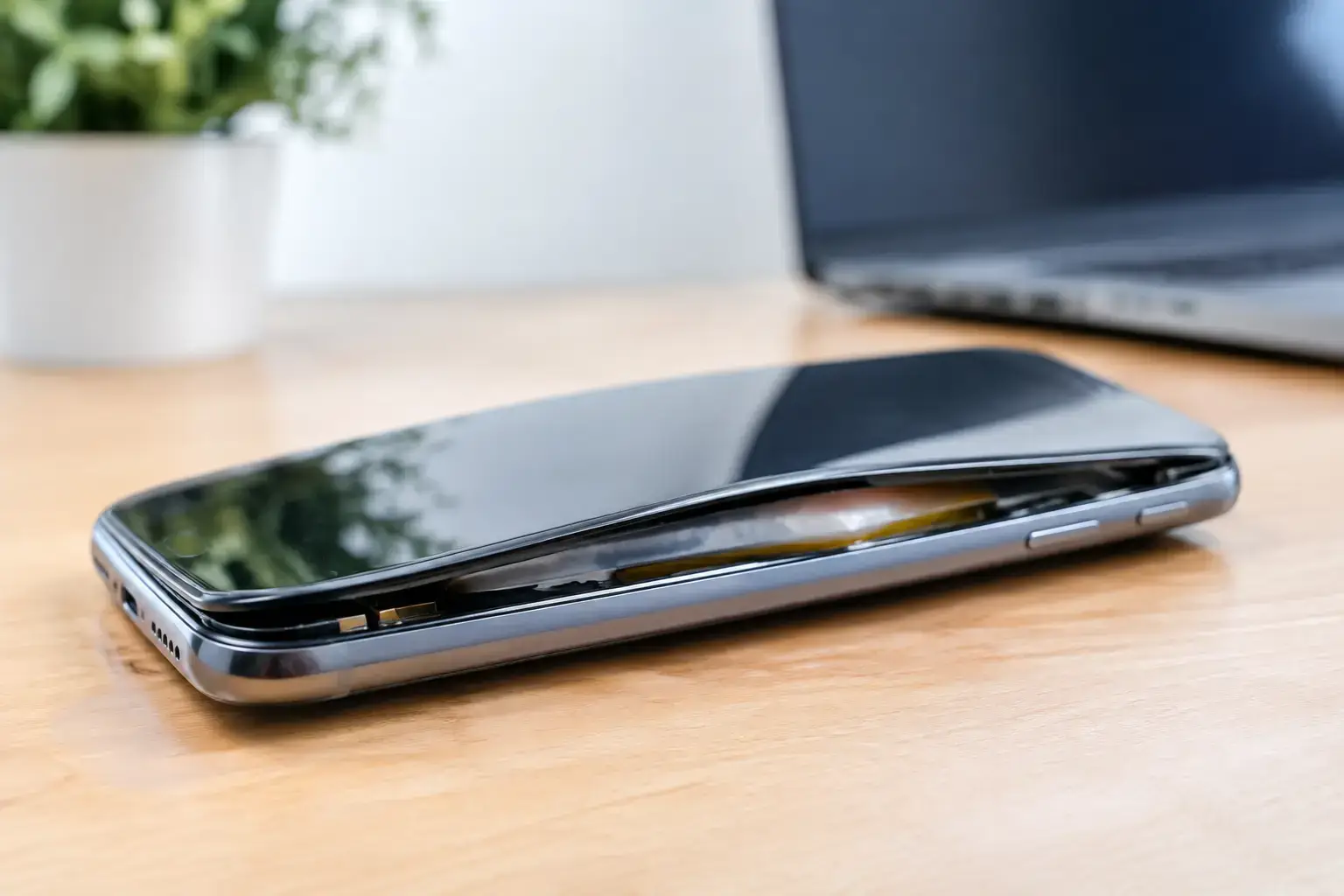
Liquid damage adds another risk: corrosion can spread after the initial spill. Do not charge the computer or keep attempting to power it on. Shut it down, disconnect power, and get it assessed. Board-level repair can sometimes restore power long enough to access files, especially when the storage is soldered to the motherboard.
Safe recovery steps you can try at home
If the computer and drive are stable, with no physical damage or strange noises, begin with low-risk checks. Look in the Recycle Bin, recently used folders, cloud storage trash folders, and backup history. On Windows, File History or a previous version may contain an earlier copy. On a Mac, Time Machine may have the file if backups were enabled.
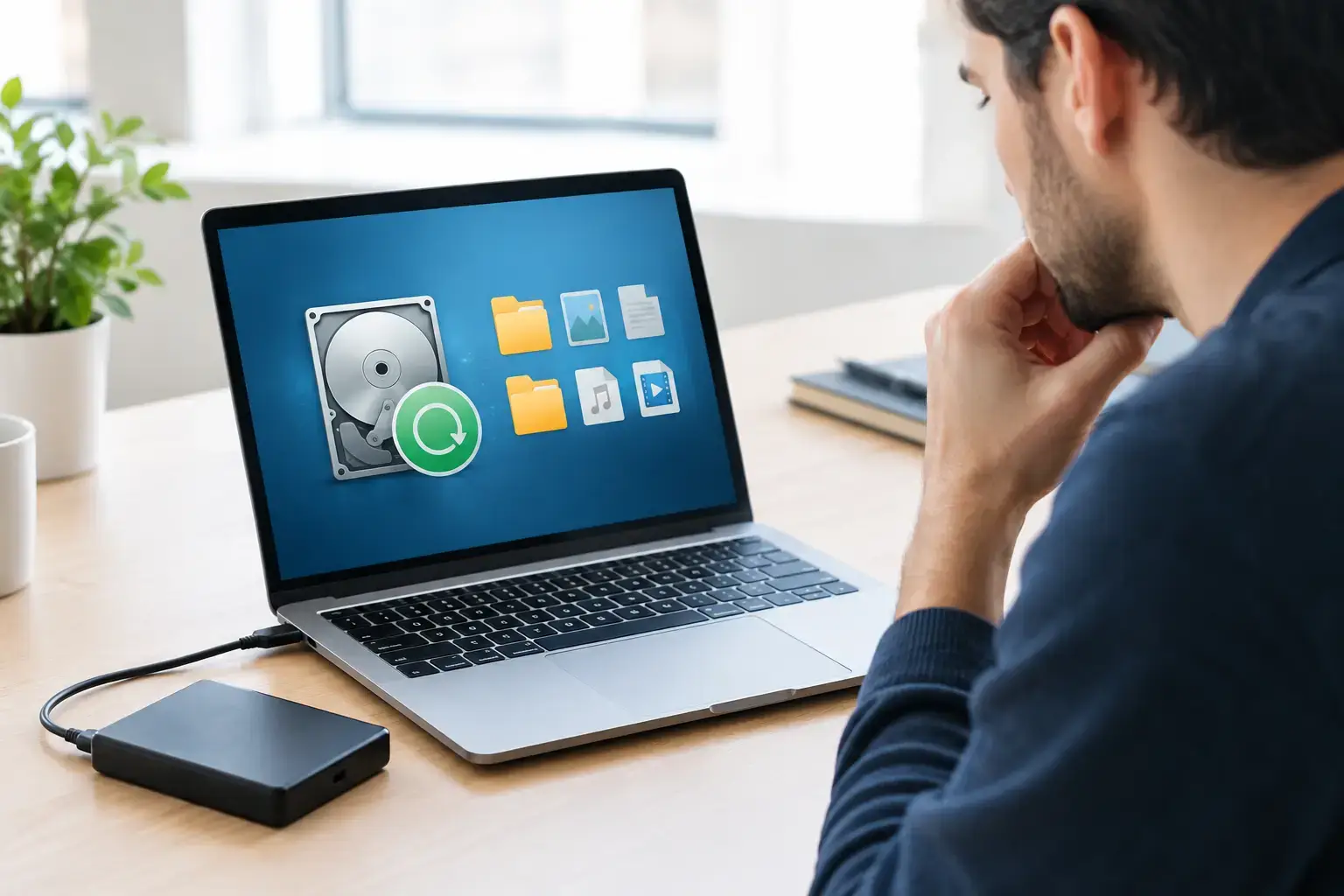
If you use recovery software, install it on a separate drive and recover files to a different storage device. Never recover files back onto the same drive you are scanning. Start by saving the most valuable documents, photos, and project files instead of trying to recover every old file at once.
Be realistic about the trade-off. Free software can help with accidental deletion on a healthy drive. It cannot repair a damaged SSD controller, a corrupted motherboard, encryption problems, or a drive with failing hardware. When the drive is unstable, scanning it aggressively can make a recoverable situation worse.
Repairing the computer versus recovering the data
The right solution depends on where the failure happened. If a laptop has a broken screen but powers on, a screen repair may give you immediate access to everything. If the motherboard has a power failure and the storage is soldered, component-level board repair may be the only practical path to your files.
Some shops jump straight to replacing a full logic board or recommending a new computer. That may restore the device, but it can leave the original data behind. Board-level diagnosis looks for the failed component first, such as a damaged charging circuit, power line, connector, or corrosion point. It is not always possible to save a device or its data, but accurate diagnosis gives you a real answer before you spend money on a replacement.
For a removable drive, recovery may involve cloning the drive before attempting repairs. The goal is to work from a copy whenever possible, not repeatedly stress the original failing hardware.
Protect your privacy during file recovery
Your computer may contain tax documents, family photos, passwords, work files, and saved browser sessions. Data recovery should never feel like handing over a mystery box.
Ask how your device will be handled, whether the issue can be diagnosed before work begins, and what happens to copied data after the job. A legitimate local repair service should explain the process in plain language, quote the work upfront, and avoid accessing personal folders unless recovery requires it.
If the computer still turns on, do not erase it, reset it, or sign out of accounts before deciding on recovery. At the same time, avoid sharing account passwords unless they are genuinely needed to access encrypted data. For encrypted devices, your login credentials or recovery key may be necessary, but that does not mean a shop needs permanent access to your accounts.
When to bring the computer in
Professional help makes sense when the data is valuable, the device shows physical failure symptoms, or home recovery attempts have not worked. Bring the computer, its charger, and any external drive involved. Tell the technician exactly what happened: accidental deletion, a drop, liquid exposure, a power outage, a failed update, or a drive that stopped appearing.
At BuyCellFix, a diagnostic can separate a repairable computer fault from a true storage failure. That matters because the fastest, lowest-cost route to your files may be repairing the laptop, recovering the drive, or safely transferring data to a replacement device.
Your next move should be calm, not rushed: stop using the affected drive, preserve what is still accessible, and get a clear diagnosis before a small file-loss problem becomes permanent.